
Keeping track of mobile data is no longer optional. Video calls, streaming apps, background updates, and cloud sync can quietly consume gigabytes without you noticing. If you have ever reached the end of the month wondering where your data went, learning how to check data usage on iPhone is one of the simplest ways to stay in control.
This guide explains exactly how to monitor, understand, and manage iOS data usage using built-in tools. It is written for everyday iPhone users, travelers using eSIMs, and anyone who wants clarity instead of surprises on their mobile bill. The steps below follow official iOS behavior, align with trusted documentation, and reflect real usage patterns seen across millions of devices.
Why Monitoring iPhone Data Usage Matters
Mobile data is consumed differently today than it was even a few years ago. High-definition video, auto-playing social feeds, cloud backups, and app updates can all run silently in the background. Without regular checks, it becomes difficult to know which apps are responsible and whether your usage matches your plan.
Understanding data usage iphone statistics helps you:
- Avoid unexpected slowdowns when limits are reached
- Control roaming usage while traveling
- Decide whether unlimited data plans are necessary
- Identify apps that drain data in the background
For users relying on travel connectivity or international eSIMs, tracking usage is even more important because roaming data behaves differently than local plans.
Step by Step Guide to Check Data Usage on iPhone
Apple includes a clear but often overlooked section in iOS that shows detailed cellular usage. You do not need any third-party apps.
1. Open the Settings App
Tap Settings on your home screen.
2. Go to Cellular or Mobile Data
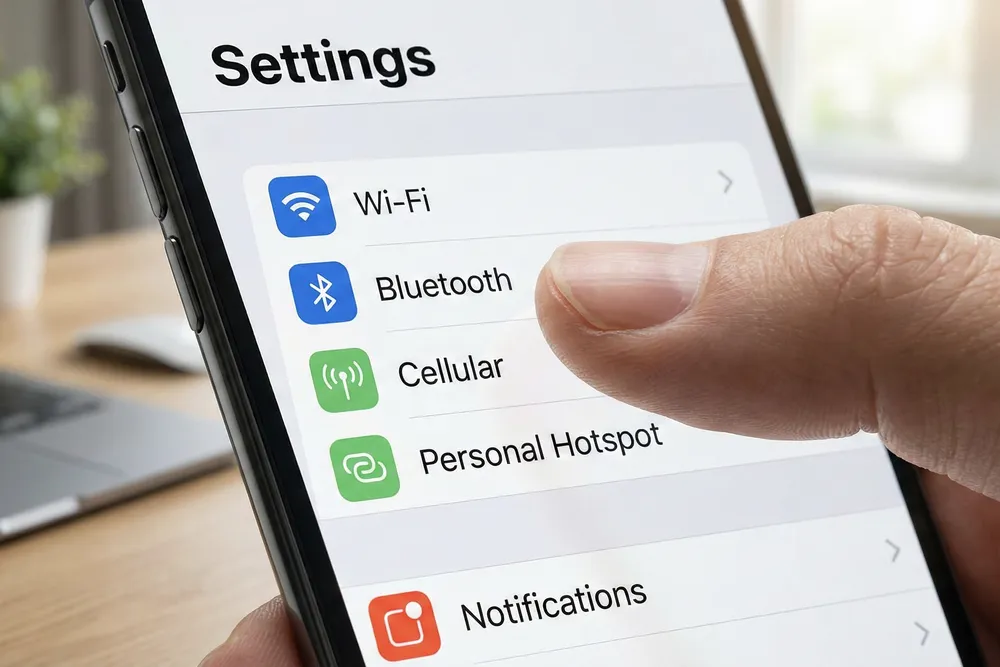
Scroll down and select Cellular, Mobile Data, or Mobile Service. The label depends on your region and carrier.
3. View the Current Period Total
At the top of the screen, you will see Current Period, which shows the total amount of cellular data used since the last reset.
This number is the fastest way to check overall consumption and is central to understanding cellular data usage iphone behavior.
How to See App Specific Data Usage
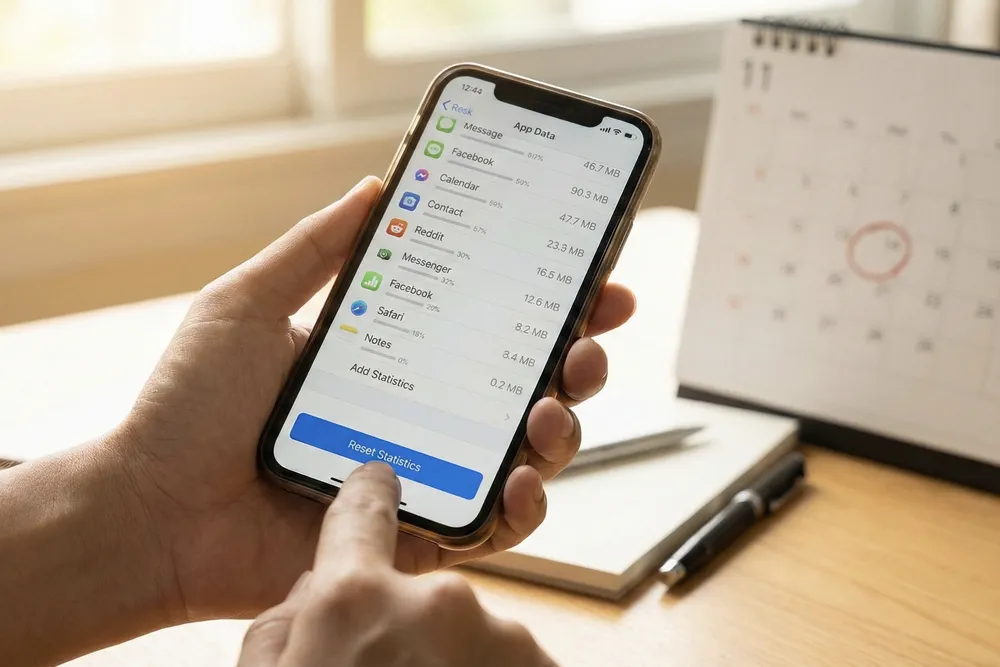
Scrolling down the same screen reveals a list of apps and the exact amount of data each one has used. This breakdown is extremely useful because it shows real usage rather than estimates.
What This List Tells You
- Streaming apps often appear at the top
- Social media apps may use background data
- System services also consume data, especially backups
This view is the most practical way to check data usage iphone at a granular level.
Restrict High Usage Apps
If an app is using more data than expected, you can toggle off cellular access. The app will then only function when connected to WiFi. This is one of the easiest ways to reduce overall usage without uninstalling anything.
What Does Current Period Mean for Cellular Data
One of the most common questions users ask is what does current period mean for cellular data. The Current Period is not tied automatically to your carrier billing cycle. Instead, it tracks data usage from the last time you manually reset statistics.
Because of this, the number may not match your carrier bill unless you reset it regularly.
Why This Matters
If you never reset statistics, your iPhone could be showing months or even years of accumulated data. That makes it difficult to know how much data you have used this month.
Reset Statistics for Accurate Monthly Tracking
To keep data tracking accurate, you should reset statistics at the beginning of each billing cycle.
How to Reset
Scroll to the bottom of the Cellular screen and tap Reset Statistics.
This action:
- Clears your local usage counter
- Does not affect your carrier records
- Helps align iOS data with monthly limits
Many users reset on the same day their plan renews. This makes it much easier to answer questions like how to see how much data you have left on iphone without guessing.
Understanding Roaming Data Usage on iPhone
If you travel internationally, your iPhone tracks roaming data separately.
Where to Find It
On the same Cellular screen, look for Current Period Roaming. This shows how much data was consumed while connected to networks outside your home country.
For travelers using international eSIMs, this number is especially important. Roaming usage often behaves differently and can increase quickly due to navigation, ride sharing, and map loading.
Using Screen Time as a Supporting Tool
iOS does not provide daily cellular logs, but Screen Time offers helpful insights into app activity.
What Screen Time Shows
- Time spent in each app
- Usage patterns across days and weeks
- Categories like entertainment or productivity
While Screen Time does not replace ios data usage tracking, it helps explain why certain apps consume more data than others.
Expert Perspective on Data Monitoring
According to mobile usage guidance published by Apple, monitoring cellular data directly through iOS settings is the most reliable way to understand real consumption because it reflects device-level activity rather than carrier estimates. Network engineers often recommend pairing app-level controls with regular statistic resets to prevent unexpected overages.
Managing Data Efficiently on iPhone
Once you understand how tracking works, managing data becomes much easier.
Practical Tips
- Reset statistics monthly
- Review app usage weekly
- Disable cellular access for non essential apps
- Turn off background refresh when traveling
These habits significantly reduce unnecessary consumption and give you confidence over your usage patterns.
Why This Matters for Travelers and eSIM Users
For users who depend on digital connectivity abroad, knowing how to track data is critical. International plans and eSIM services often provide flexible data options, but awareness is what prevents interruptions.
BenoSIM users benefit from instant activation and transparent usage, but even with unlimited options, monitoring helps maintain consistent speeds and avoid throttling thresholds.
Final Thoughts
Learning how to check data usage on iphone is not just a technical skill. It is a habit that protects you from slowdowns, overages, and frustration. With a few taps inside iOS settings, you gain full visibility into your mobile activity.
Whether you are at home, commuting, or traveling internationally, understanding and monitoring your data usage keeps you in control of your connection and your experience.

